What Shopify Theme Is This? How to Identify and Evaluate a Store's Theme
Identify a Shopify store's theme with Drilify, then evaluate its mobile layout, product pages, trust cues, and editability before choosing a theme for your own store.
Identify a Shopify store's theme with Drilify, then evaluate its mobile layout, product pages, trust cues, and editability before choosing a theme for your own store.
A storefront can make a theme look effortless. The same theme on another shop may look entirely different. If you want to know what Shopify theme a website uses, start by identifying the theme, then separate the theme's capabilities from the store's photography, apps, custom code, and merchandising. That second step is where useful research begins.
Drilify's free Shopify Theme Detector gives you a quick starting point. Paste a Shopify store URL and review the detected theme and available store details. Then use the checklist below to decide which design choices are relevant to your own products and customers. A theme name is evidence about the storefront foundation, not a shortcut to the store's results.
The quick answer: how to find a Shopify store's theme
Open the store's public homepage and copy its URL.
Read the theme name if one is available. Review the store details for context, such as currency and product count when shown.
Compare the live storefront on desktop and mobile. Record which elements you can see, not assumptions about the theme's built-in features.
If the result is unknown or custom, use the manual checks below and treat the exact theme identity as unresolved.
The detector is for Shopify stores. It can identify theme metadata exposed by a public storefront, but a store can rename or heavily modify a theme. An unknown result does not mean the store has no theme. It means the public evidence was not enough to name it reliably.
LATEST POSTS
More from Drilify
Interviews, tips, guides, industry best practices, and news.
14 min read
11 Best Dropshipping Product Research Tools for 2026
Compare 11 dropshipping product research tools by workflow, current pricing, features, and limitations, including Drilify and useful free resources.
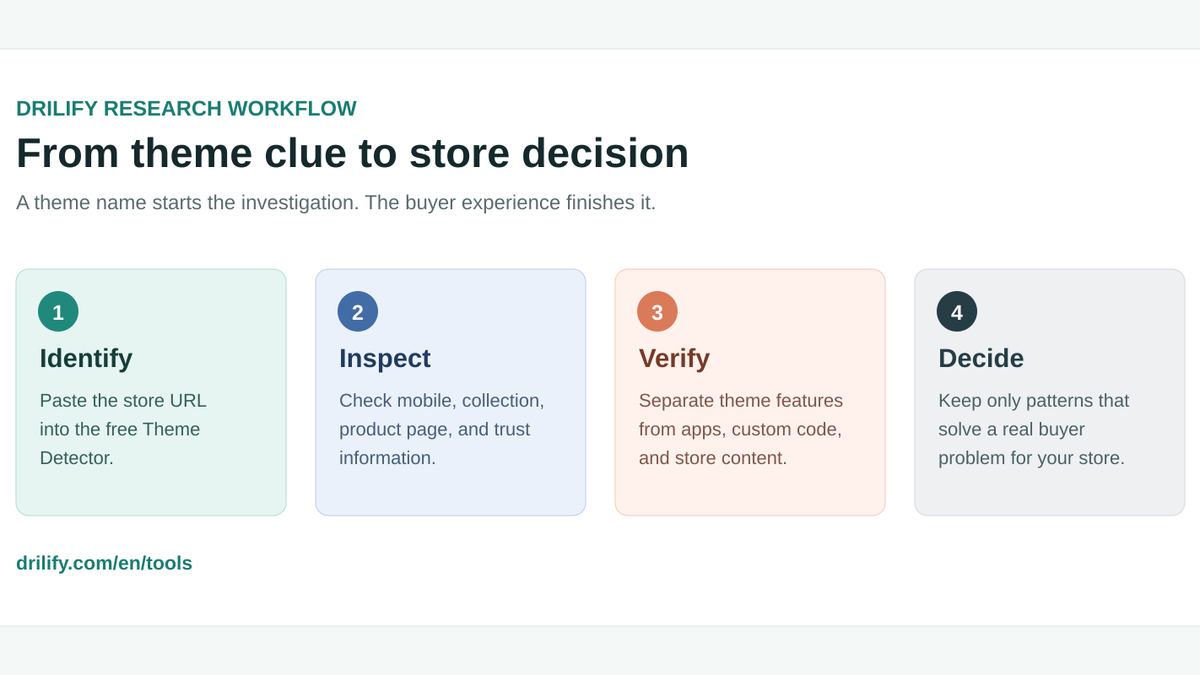
Identify the theme, inspect the buyer journey, verify what powers each feature, and decide what fits your store.
What Drilify can tell you, and what it cannot
Drilify's result is useful because it puts a theme clue next to store context. You can see the detected name when available, a theme-store or custom-theme label, and fields such as store name, domain, currency, product count, description, and social links when the storefront exposes them. Some fields can be blank, and product counts may be capped. Use them as a research snapshot, not a complete store audit.
The theme label does not tell you which apps power the page, how much custom code was added, how fast the store is for real shoppers, or whether the design converts. It also does not grant access to private sales or revenue data. A storefront that looks familiar may be a standard theme with extensive customization; a store marked custom may share patterns with a Theme Store design.
That distinction matters when you are choosing a theme. Copying a visual surface is easy; reproducing the underlying customer experience is a separate project. Use Drilify to narrow your investigation, then test the specific features you need in a theme preview or your own Shopify store.
If the detector does not name the theme
Try the store's homepage URL rather than a product or collection URL, and confirm that the site is a Shopify storefront. If the site is blocked, unavailable, or hides the relevant metadata, a detector may not return a name. Do not force a match from a similar-looking layout.
You can also inspect the public page yourself. In a desktop browser, open the storefront, choose View page source, and search for Shopify.theme, schema_name, or theme_store_id. Shopify documents window.Shopify.theme.schema_name as a storefront theme-information property. A theme's merchant-facing name and its underlying schema name can differ, and a custom theme may not map to a Theme Store listing. Shopify's theme-information update explains the supported metadata.
If you run the store yourself, the reliable place to check is Shopify admin under Online Store > Themes. Public-source methods are clues for competitor research, not a substitute for an owner's admin view. Once you have a candidate, search Shopify's Theme Store for the theme name and compare the actual demo and feature list. Similar appearance alone is not confirmation.
Turn a theme name into a better store decision
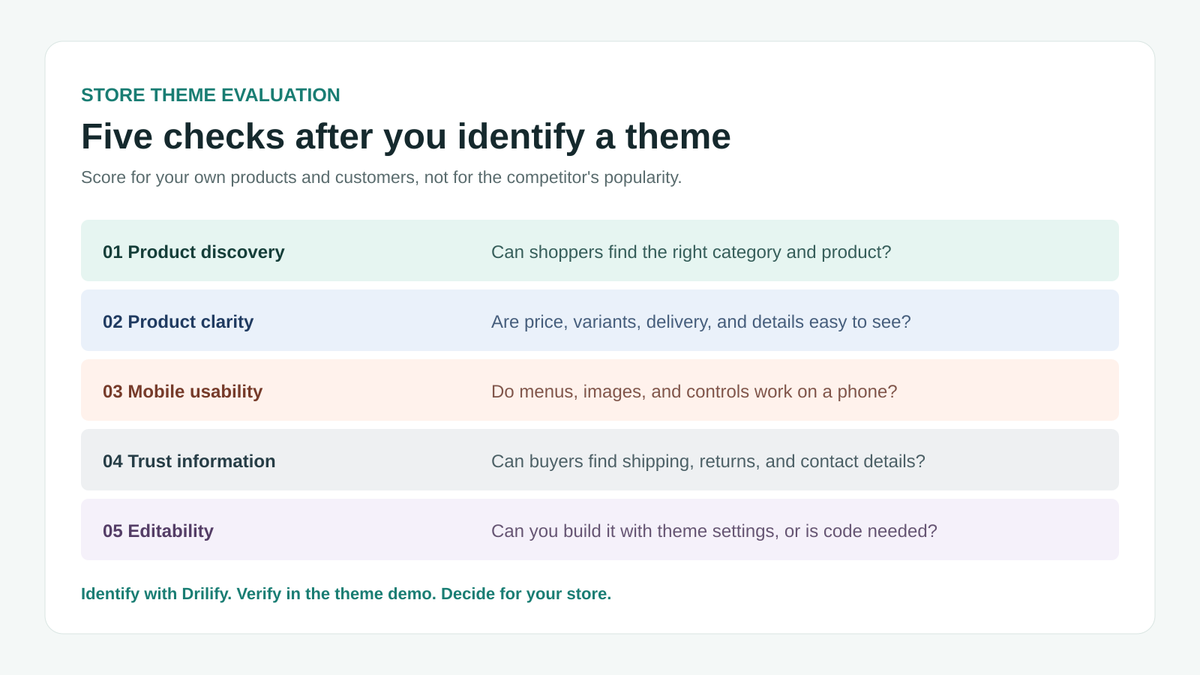
The useful question is not only “Which theme is this?” It is “Which parts of this storefront help this kind of buyer make a decision?” Take one competitor at a time and evaluate five areas.
1. Product discovery
Start with navigation. How quickly can a new visitor move from the homepage to a relevant collection and then to a product? Note menu depth, filters, search behavior, and whether important categories are visible without guesswork. A store with a small, focused catalog may need a different navigation pattern from a large multi-category shop. Drilify's store context, including a product count when available, can help you frame that comparison, but verify the catalog yourself.
2. Product-page clarity
Inspect the first mobile screen of a product page. Can you identify the product, price, variants, shipping expectations, and primary action? Scroll for images, size or compatibility details, returns, and other decision-making information. A strong layout reduces uncertainty. It is not enough for a theme demo to display a feature; check whether your product data and policies can actually fill it.
3. Mobile usability
Use a phone-sized viewport. Look for legible text, tappable controls, a visible cart path, and product images that do not bury the details. Test menus and variant selectors rather than judging a screenshot. Shopify themes provide a foundation, but apps and custom edits can change the live experience. Evaluate the actual store and the theme demo separately.
4. Trust and operations
Find shipping, returns, contact, and policy links. Note where reviews or other proof appear, but do not assume those are included in the theme. In dropshipping, delivery expectations and product quality often matter more than a fashionable homepage. A visual idea is worth borrowing only if the operational promise behind it is one you can keep.
5. Editability and maintenance
Before adopting a theme, check which sections and settings you can control in Shopify's theme editor and which changes require code or an app. Shopify explains that merchants can add, remove, and rearrange content within a theme's available options, while deeper changes may require code edits. Review support and update expectations as well. Shopify's customization guide is the right reference for what the editor can and cannot change.
Compare product discovery, product clarity, mobile usability, trust information, and editability for your own store.
A practical competitor-research example
Imagine two Shopify stores selling compact home-office accessories. Store A uses a familiar theme but has a carefully organized collection page, precise dimensions, and clear delivery information. Store B uses a heavily customized theme with a striking homepage, yet its product pages hide compatibility details. The theme names alone cannot tell you which experience is more useful to your customers.
Run each URL through Drilify's free detector to identify the available theme clues. Then compare one equivalent product page from each store. Write down the buyer question each page answers, the element that answers it, and whether you can implement that element with your own theme, content, or an app. A useful research note might read: “A visible dimensions table answers fit questions before checkout.” “Use the same theme” is not a useful conclusion.
This is also where Drilify's broader store-research workflow becomes valuable. After identifying the storefront's design foundation, Store Intelligence and the Shop Library can help you examine stores and competitors from more than a visual angle. Product and market decisions deserve their own checks; a polished theme is only one signal.
Mistakes to avoid when copying a competitor's theme
Confusing a theme with a finished store. Photography, copy, apps, custom code, and catalog structure can account for much of what you see.
Treating a detected label as guaranteed. Public metadata may be missing, renamed, or changed. Verify the candidate against the theme demo and visible storefront.
Choosing for desktop aesthetics alone. Test the mobile product page and checkout path for your own buyer.
Assuming a feature is native. A review widget, bundle offer, or delivery estimator may come from an app or custom implementation.
Copying without product fit. A theme that works for a large fashion catalog may be cumbersome for a focused single-category store.
Mistaking design for performance. A theme name cannot prove conversion rate, sales, or customer satisfaction.
A 20-minute theme research routine
Pick three stores that sell to a similar customer. For each, run the URL through Drilify's Theme Detector. Save the detected name or “unknown,” plus a screenshot or note of the mobile homepage, a collection page, and a product page. Score each store from 1 to 5 on product discovery, product-page clarity, mobile usability, trust information, and editability for your own needs. The numbers are your decision aid, not a rating of the competitor's business.
Select two or three elements to test in your own store. For each element, state the buyer problem it should solve and how you will tell whether it improved the experience. For example, a more visible size guide should reduce unanswered fit questions; clearer shipping copy should reduce delivery uncertainty. If the element requires an app or custom development, record that before selecting a theme.
Shopify's own theme architecture separates templates, sections, settings, and assets, which is why two stores on the same base theme can look and behave differently. Shopify's theme architecture overview is useful when a change is more involved than a theme-editor setting.
Frequently asked questions
Can I find the exact theme of any Shopify store?
Not always. Public theme metadata can be missing, renamed, or customized. Drilify reports the theme information it can detect; an unknown or custom result should remain uncertain until you have stronger evidence.
Does using the same Shopify theme make my store look the same?
No. Images, colors, typography, content, section arrangement, apps, and code changes can create very different storefronts on the same base theme. Compare the theme demo with the live store before attributing a feature to the theme.
Can a theme detector show a competitor's sales?
No. A theme detector identifies storefront theme clues and some public store details. It does not access private orders, revenue, conversion rates, or profit.
What if a store uses a custom theme?
You can still study its navigation, product pages, mobile layout, and trust cues. Treat those as design patterns to evaluate rather than a theme you can purchase and install directly.
Is a paid theme automatically better than a free one?
No. Judge a theme against your catalog, content needs, mobile experience, support, and maintenance capacity. A free theme that answers your buyers' questions well may be a stronger choice than a paid theme you cannot configure effectively.
Should I copy a competitor's storefront design?
Borrow lessons, not a clone. Identify the buyer problem behind a useful element, then implement an original version that fits your brand, products, policies, and legal obligations.
Find the theme, then make the decision
A detected theme name is the beginning of research, not the conclusion. Use Drilify's free Shopify Theme Detector to identify a storefront's available theme clues, then compare the customer journey, mobile experience, and practical editability before changing your own store. That gives you a decision you can defend, rather than a design you merely recognize.